
USB & Flash Drive Recovery
Recover files from RAW, formatted, unreadable, or deleted USB drives and flash drives.
Written by the Refindo Recovery Team · Updated
USB drives and small flash drives fail in the same sudden ways: a file is deleted, a stick is quick-formatted, a removable drive turns RAW, folders disappear after a transfer, or the computer asks to format it. Whether you call it a USB stick, thumb drive, or pen drive, scan it before changing anything while Windows or macOS still recognizes it with a realistic capacity. Refindo can preview the results and recover selected files to a different drive.
Quick answer
For USB or flash drive recovery, stop writing to the device and scan it before formatting, repairing, or copying new files. Files on a deleted, formatted, RAW, empty-looking, or unreadable USB stick are often recoverable while the device is still detected.
What this covers
- Recover deleted files from USB drives, flash drives, USB sticks, thumb drives, and pen drives
- Handle accidental deletion, quick format, RAW file system, format prompts, and folders that disappeared
- Covers removable USB storage with NTFS, FAT32, exFAT, and APFS when readable by the OS
- Quick Scan for fast metadata-based discovery, Deep Scan for broader signature results
- Preview common file types before recovery to check whether files are intact
- Works on Windows 10/11 (64-bit) and macOS 12+
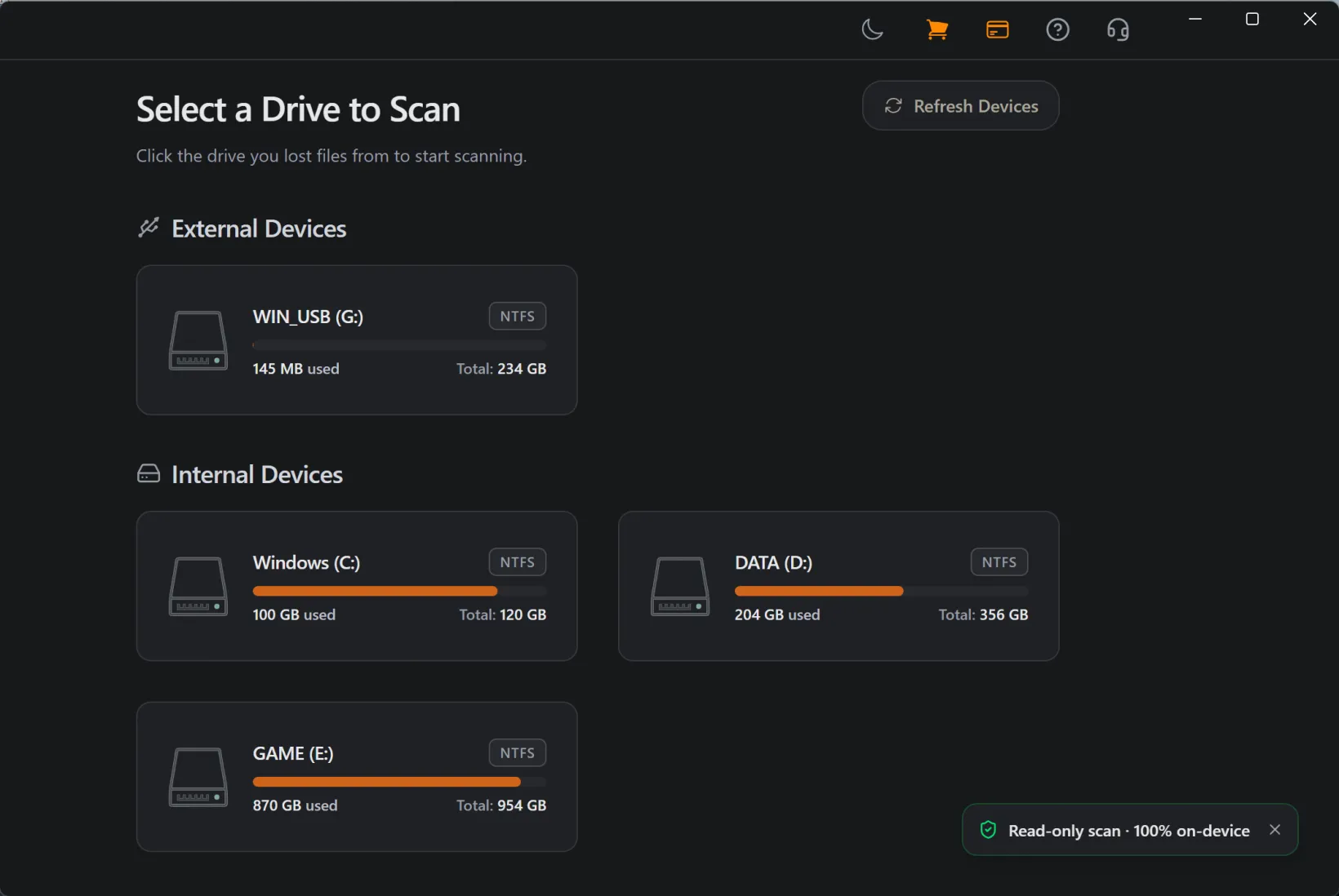
Recovery Workflow
- Connect the USB drive directly to your computer instead of through an unstable hub.
- Cancel any format, repair, or initialize prompt from the operating system.
- Confirm the device shows a realistic capacity in Disk Management, Disk Utility, or System Information.
- Open Refindo, select the USB device or volume, and run Quick Scan first.
- Use filters and search to locate deleted or missing files.
- Run Deep Scan if the USB drive is RAW, recently formatted, or missing key folders.
- Preview target files and recover them to your computer or another external drive.
Best Practices
- Avoid copying new files to the USB drive before recovery.
- Use a stable USB port and avoid interruptions during scanning.
- Recover to a different storage device, not the same USB drive.
- Run deep scan for drives with heavy deletion or quick format history.
- Do not run disk repair or formatting tools before checking recoverable files.
- If the drive disconnects repeatedly, stop and rule out hardware or connection problems.
- Recover only to the computer or another drive, never back to the same USB device.
USB and flash recovery depends on the symptom
The most useful question is not whether the device is called a USB drive, flash drive, USB stick, thumb drive, or pen drive, but what happened to it. Deleted files, a quick format, a RAW or unreadable file system, a format prompt, missing folders, and a device that disconnects before the scan can finish are different recovery cases. This page is the combined workflow for sorting those symptoms safely.
The failure state tells you which scan to trust. Recently deleted files are the best fit for Quick Scan because the directory may still point to the old names and folders. A formatted or RAW USB drive usually needs Deep Scan because the original folder map may be damaged or gone.
- This guide covers removable USB drives and small USB flash media.
- USB stick, thumb drive, and pen drive are alternate names for the same recovery path.
- Deleted files start with Quick Scan; RAW or formatted drives usually need Deep Scan.
- Missing folders after a transfer are a scan-first case, not a copy-again case.
- The device must still be detected before software can read it.
Never format a drive just because Windows asks
The most common way people destroy recoverable data on a USB drive is by accepting the very prompt that announces the problem. When the drive's file system is damaged or half-written, Windows and macOS often pop up "You need to format the disk before you can use it." That message is about a file system the OS can't parse. It isn't a verdict on the files underneath, which are usually still sitting on the device intact.
So cancel the prompt and leave the drive alone. If it disconnects mid-read, try a different port or a direct connection instead of a hub before you do anything else. The one situation where software can't help is when the OS doesn't detect the device at all, and even then, repeatedly yanking and reinserting a struggling drive tends to make a marginal controller worse, not better.
- Cancel the format prompt and scan the current state first.
- Try another port or a direct connection if the drive drops during scanning.
- If the OS cannot detect the device at all, software recovery may not reach it.
- Do not initialize, erase, or repair before checking the scan results.
Why USB sticks and removable drives lose data suddenly
Removable USB drives are often formatted FAT32 or exFAT so they work across Windows, macOS, cameras, and media players. Those file systems are lean and have no journal to fall back on, so an unsafe removal, pulling the drive mid-write or a power blip, can leave the directory inconsistent with no automatic repair. That same portability is why USB drives see so much deletion, reformatting, and cross-device shuffling, and each of those is a chance for loss.
A deleted or quick-formatted USB drive usually still holds its data until something writes over it, so documents, archives, photos, and videos are often recoverable. The trap is reuse: copying new files onto the drive, or recovering back onto it, overwrites the very data you're trying to save. And since exFAT can look healthy on one machine and broken on another, scan it from a system that reads it cleanly when you have the choice.
After the files are safely recovered and verified, you can reformat the stick if the failure came from an unsafe removal. Retire it instead if it reports the wrong capacity, disconnects repeatedly, or corrupts files again, because those symptoms point to worn flash memory or a failing controller.
- FAT32 and exFAT have no journal, so unsafe removal can corrupt the directory.
- Deleted and quick-formatted files survive until new writes overwrite them.
- Recovering back onto the same USB device can overwrite files not yet restored.
- A cross-device drive may read fine on one OS and fail on another.
Reading a RAW or "empty" USB drive
A USB drive that shows as RAW, reports zero bytes, or suddenly looks empty after a transfer error is a familiar, recoverable pattern, as long as the device still appears with roughly its correct capacity. A correct size tells you the storage controller is alive and only the file system view is broken, which is exactly the case where a scan can read beneath the damaged structure and rebuild what's there.
Capacity is the tell. A drive that reports its real size is worth scanning; one that shows a few kilobytes, a wildly wrong number, or nothing at all is flagging a controller or hardware fault that software may not get past. Either way, don't let Windows or macOS "repair" the drive first. Run the recovery scan before any repair, because repair tools write to the structures the scan needs to read.
- A correct reported capacity is the strongest sign recovery is viable.
- Zero-byte or wildly wrong capacity points to a controller or hardware fault.
- If the drive looks empty after a transfer error, scan before copying anything new.
- Skip "repair this drive" prompts until after the recovery scan.
When to use the RAW or formatted USB guides
Use this page when you are still sorting out the symptom. Once the drive state is clear, the narrower guides are better. A USB drive that changed to RAW, has no readable file system, or only offers a format prompt belongs with the RAW USB path. A drive you intentionally formatted, or accidentally quick-formatted, belongs with the formatted USB path because the original directory may have been replaced.
Those narrower paths don't change the safety rule: don't format again, don't run repair first, and don't recover back to the same USB device. They simply help you choose the scan order and set expectations for names and folders. Quick Scan can preserve structure when metadata survives. Deep Scan is better when it has to rebuild files from signatures.
- RAW or unreadable USB drive: scan before format or repair.
- Formatted USB drive: use Deep Scan if Quick Scan misses the old folders.
- Deleted files on a mounted stick: start with Quick Scan.
- Recover to another drive in every case.
USB Drive Recovery Guidance
Rule out the connection before blaming the drive
A surprising number of "dead" USB drives are really dead cables, tired ports, or unpowered hubs that can't hold a stable connection. Before you assume the worst, plug the drive straight into a port on the computer, no hub and no adapter, and keep it still while it reads. On Windows, check that it appears in Disk Management with the right capacity; on macOS, check Disk Utility. Seeing the device at its correct size is the green light to scan. A drive that only shows up now and then, or drops out under load, is telling you the problem is physical, and more retries can make it worse.
Match the scan to the failure
Quick Scan is the right first pass for recently deleted files, because while the directory records survive it can hand files back with their original names and folders. Deep Scan reads the USB drive sector by sector and rebuilds files from their signatures, which is what reaches data after a format, a RAW state, or directory damage. The trade-off is that it may group results by file type instead of original path. Run Quick Scan first, and move up to Deep Scan when the files you need haven't turned up or the drive no longer has a readable file system.
Choose the path by symptom, not by device name
USB drive, flash drive, USB stick, thumb drive, and pen drive all use this recovery path. If the issue is specifically RAW, formatted, asking to format, empty-looking, or not detected, use the matching symptom guide and keep the source device untouched until the scan results are safely copied elsewhere.
Always recover to a different drive
This is the rule USB recovery breaks most often, because a removable drive feels small and handy. Don't save recovered files back onto the same USB device. Even a modest batch can overwrite old data you haven't restored yet, and on a small drive the free space the recovery is reading is the same space the restore would eat. Send recovered files to your computer's internal drive, another external disk, or a synced local folder, and leave the source device alone until everything you wanted is safely off it.
Frequently Asked Questions
Is flash drive recovery the same as USB drive recovery?
Yes. This guide covers removable USB storage including flash drives, USB sticks, thumb drives, and pen drives. The same scan-first workflow applies while the device is still detected with a realistic capacity.
Can I recover files from a USB drive that asks to format?
If the USB device is still detectable by the OS, you can try scanning it before formatting to check what files are recoverable.
Do I need both quick scan and deep scan for USB recovery?
Start with quick scan for speed. If key files are missing, deep scan usually finds more candidates in difficult scenarios.
Where should I save recovered USB files?
Save recovered files to a different disk, not back to the same USB drive, to avoid overwrite risk.
Can I recover files from a USB drive that became RAW?
If the USB drive is still detected with the correct capacity, scanning may find recoverable files even when the file system appears as RAW or unreadable.
Should I format the USB drive before recovery?
No. Formatting may make the drive look usable again, but it can overwrite file system records and reduce the chance of recovering the original data.
Why does my USB drive disconnect during scanning?
Unstable ports, hubs, adapters, power issues, or failing flash memory can cause disconnects. Try a direct USB port and avoid moving the device during recovery.
Can I recover files from a physically broken USB drive?
If the device is not detected at all, software cannot read it. Physically damaged USB drives may need professional recovery instead of repeated plug-in attempts.
Can original file names and folders be restored?
Sometimes. Quick Scan can preserve names and folders when metadata remains. Deep Scan may recover content by file type when the original structure is damaged.
Start with a free scan
Check recoverable files first, then decide whether to proceed with recovery, and save results to a separate drive.