
Recover Files from Recycle Bin and Trash
Recover files after Bin or Trash has been emptied.
Written by the Refindo Recovery Team · Updated
Emptying the Recycle Bin or Trash removes the pointer to a file, not the file itself. Until new data overwrites the space, the contents usually stay put. Refindo scans supported file systems for those still-intact files and previews them before you restore, so you can act inside that window before they're overwritten for good.
Quick answer
Emptying the Recycle Bin or Trash removes the pointer to a file, not the file itself, so the contents usually stay on the drive until new data overwrites them. Stop using that drive right away and scan it to recover the files inside that window.
What this covers
- Recover files after emptying Recycle Bin on Windows
- Recover files after emptying Trash on macOS
- Supports quick scan for fast results and deep scan for harder cases
- Preview and selectively recover only important files
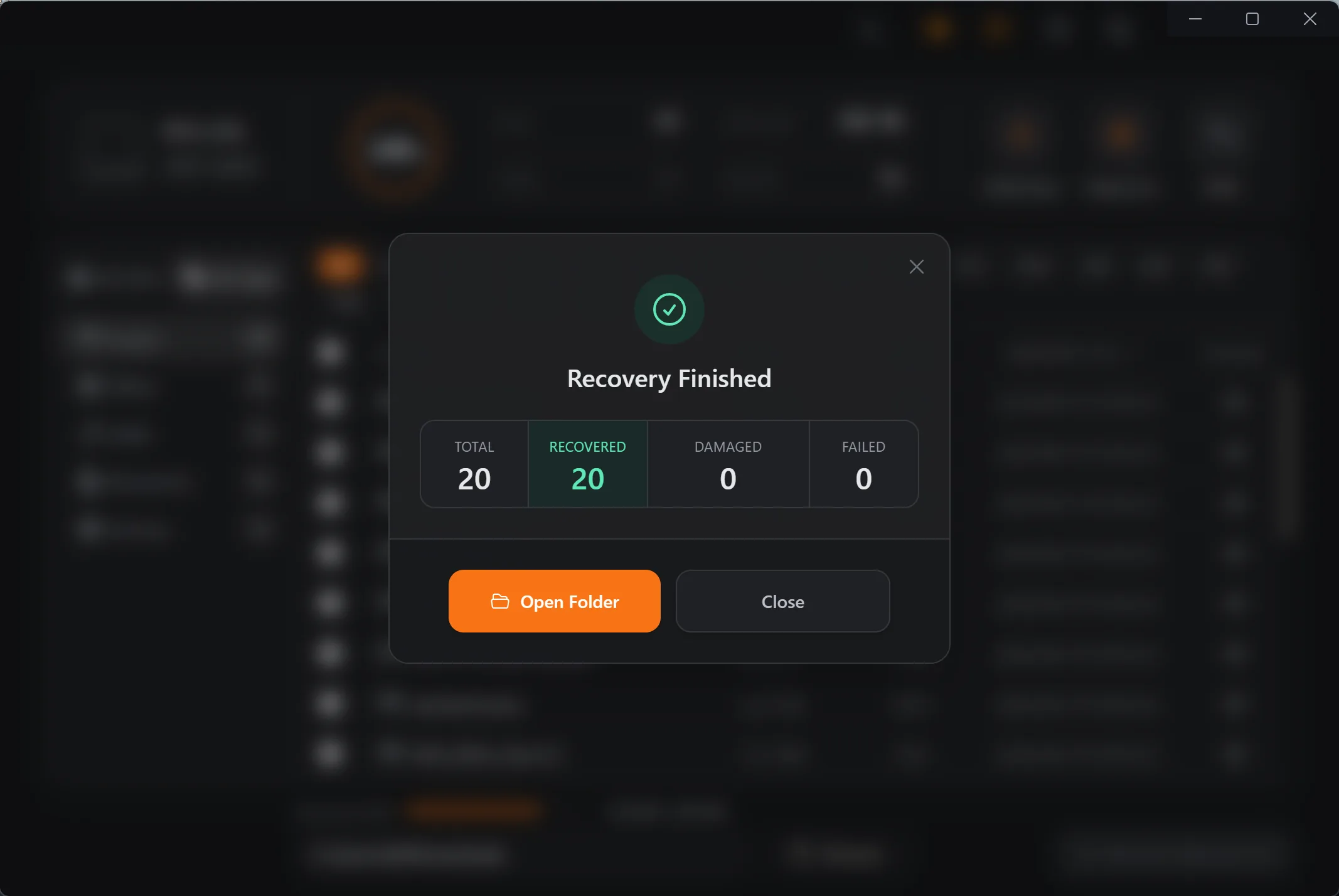
Recovery Workflow
- Select the source drive where deleted files originally existed.
- Run Quick Scan and check recoverable candidates.
- Use Deep Scan for additional file signatures and historical traces.
- Recover selected files to a different destination.
Best Practices
- Minimize new writes to the source drive after deletion.
- Avoid installing large apps to the same disk before recovery.
- Run deep scan if quick scan misses key files.
- Export recovered files to another volume first.
Emptying the Bin deletes the pointer, not the file
The Recycle Bin and Trash aren't where deletion happens. They're a holding area before it. While a file sits in the Bin, it's just a normal file in a hidden folder, and "Restore" puts it back instantly. Emptying the Bin is the real deletion: the operating system drops the file system record that points to the data and marks its space as free. What it doesn't do is erase the data. The bytes stay on the disk, fully intact, until something else writes over that space.
That's the window recovery works inside. A scan looks past the now-empty directory entry and finds the data still sitting in the freed space, which is why files survive an emptied Bin far more often than people expect. The catch is that "free space" is exactly where the system writes new data next, so the clock starts the moment you empty it.
- A file in the Bin restores instantly; emptying is the real deletion.
- Emptying frees the space but leaves the data until something overwrites it.
- Quick Scan often rebuilds names and folders; Deep Scan reaches more after that.
- Preview a file before committing to recovering a large batch.
Where the data lives, and what eats into it
Recovery only works on the drive that actually held the file, so the first question is always which disk that was. A file deleted from the Desktop, Documents, or Downloads lived on the system volume; a file deleted from an external drive or memory card lived there; a file moved between drives before deletion lives on whichever one held it last. Scanning the wrong drive finds nothing even when the data is perfectly recoverable on another.
The harder variable is time, and it's worse on the system drive than anywhere else. The disk Windows or macOS boots from is never idle. Browser caches, app updates, logs, and temp files write to it constantly, and on an SSD the TRIM command lets the controller wipe freed blocks in the background within minutes. So an emptied Bin on the boot SSD is the most urgent case there is: the more you keep using the machine, the more of your freed space gets reused before you can scan it.
- Scan the system volume for files deleted from Desktop, Documents, or Downloads.
- Scan the external drive or card for files that lived there.
- Avoid installing apps or downloading to the source disk after deletion.
- On an SSD, TRIM can clear freed blocks within minutes, so scan promptly.
Recycle Bin and Trash Recovery Guidance
Aim at the source disk, not the Bin folder
It's tempting to picture "recovering from the Recycle Bin" as digging through the Bin itself, but once it's emptied there's nothing left there to read. Recovery targets the drive where the file originally lived and finds the data in the freed space. Point the scan at that disk: the system volume for everyday folders, the specific external drive or card for files that lived on removable media. And if a file bounced between drives before you deleted it, scan the last one that held it.
Every write after deletion costs you odds
The most effective thing you can do after emptying the Bin is to use the source drive as little as possible. Downloads, software installs, browser caches, and background updates all write into the same free space your deleted files are sitting in, and each one can overwrite something you haven't recovered yet. If the files matter, treat the drive as read-only until the scan is done. Better still, run the recovery from another drive so you're not installing anything onto the disk you're trying to rescue.
SSDs forgive far less than hard drives
On an old spinning hard drive, an emptied file could stay recoverable for weeks, because nothing erases it until new data lands on top. SSDs don't work that way. TRIM and the drive's own garbage collection actively reclaim freed blocks, so permanently deleted files can become genuinely unrecoverable within minutes of emptying the Bin. So scan promptly, preview the results to confirm they're intact, and get the important files onto another disk before the controller finishes its cleanup.
Frequently Asked Questions
Can I recover files after emptying Recycle Bin?
Yes, recovery is often possible if deleted data blocks have not been overwritten by new writes.
Can I recover files from emptied Trash on Mac?
Often, yes, if the files were on a detectable APFS, exFAT, FAT32, or NTFS source and the freed space has not been reused. Scan the original drive, not the Trash folder, and recover files to another destination.
Does this also work for macOS Trash recovery?
Yes. Refindo supports recovery workflows on supported macOS file systems including APFS.
What affects Recycle Bin or Trash recovery success?
Time since deletion and how much new data has been written to the same disk are the biggest factors.
Start with a free scan
Check recoverable files first, then decide whether to proceed with recovery, and save results to a separate drive.